LinkedIn is more than just finding a new job or growing your network connections. I bet most of us haven’t tried LinkedIn ads but are stuck with the question “Should I try LinkedIn ads in 2025?”
With more than 1 Billion members, 200 countries, including executives from every Fortune 500 company. LinkedIn is no longer optional, it is a mandate. LinkedIn advertising helps you target decision-makers with customizable content and data.
In the LinkedIn Ad guidance discussion, we have shared the Importance of using LinkedIn ads and LinkedIn, the types of LinkedIn ads, and how to set up LinkedIn Ads in 2024.
Is LinkedIn Ads Worth It?
LinkedIn is a cultural ecosystem for professionals, business owners, entrepreneurs, and creators.
This feature comes in LinkedIn Ads where you can reserve your preferred audience and make sure your message reaches your target.
There are even guaranteed impressions with LinkedIn ads.
Statistical reasons why LinkedIn is a profitable platform to invest in-
20.82% of B2B marketers advertise on LinkedIn
Businesses see a 33% purchase increase using Linkedin Ads
LinkedIn Ad reaches 14% of the global population
77% of Marketers say they observe better organic reach on LinkedIn
according to data published by the social shepherd.
Before getting all these benefits, you need to create your LinkedIn ad and see what magic it does to your business.
Types of LinkedIn Ads
Here are the 4 major LinkedIn ad types to consider as a LinkedIn Marketer or marketer with LinkedIn accounts.
1. Self Serve Ad or Campaign Manager Ad Options
With the help of LinkedIn ads Campaign Manager, you can target the right audience, schedule campaigns in advance, and see detailed charts that show the job functions, industries, and seniority level of users who click your ads.
There are two types of ad formats you can use for advertising on LinkedIn:
Sponsored Content
This is a Company Page update (shared posts with company promotions, SlideShare-presentations, YouTube videos, Vimeo, relevant industry articles, and news) promoted to targeted audience.
The LinkedIn-sponsored content appears in the homepage feed (on tablet, mobile, and desktop) and on the right side of the desktop homepage.
When is the best time to use Sponsored Content Ad?
For instance, if you have a one-day-only sale on pizza or a video of a recent company charity event, a sponsored update works the best to spread the word.
1.Text and Image AdsYou need to have a powerful headline, description, and a powerful 50×50 image if you like.
With the help of B2B filters, you can choose your target audience and set your own budget. Image and text ads are only available on the desktop. You can see them under “Ads You May Be Interested In” and as text link advertisements are at the top of the homepage.
When is the best time to use Text and Image Ads?
If you want to grab the attention of a busy professional or some company, this type of ads are your best bet. You can include a compelling image with the help of your ad and grab the professionals attention.
2. Dynamic Ads
This type of ad is highly customizable. You can write your own ad copy, dynamically generate images from LinkedIn member profiles, and choose your CTA (call-to-action).
This is one of the best LinkedIn advertising options which helps in building relationships and prompting the most influential members of your audience to wake up and pay attention to your business.
3. Display Ads
It helps you get your business in front of your desired audience and boost the awareness on an immense scale. With the help of this option, you can find the right professionals on the basis of relevant profile data.
4. Sponsored InMail
It offers you the opportunity to deliver sponsored content directly to LinkedIn’s user inboxes. This type of ad format gives you 100% deliverability as Sponsored InMail only gets delivered when members are active on LinkedIn. You can create personalized messages and drive conversion rates effectively.
With LinkedIn paid ads, consider organic ads and content creation. To maximize the entire optimization on LinkedIn, consider Linkedin marketing tools used in practice.
Setting Up LinkedIn Ads
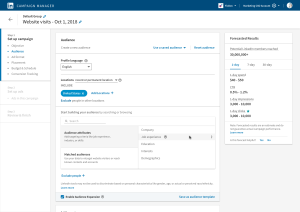
Here are 7 easy steps to connect your brand with 1 billion active and influential people. However, before diving into the key steps let’s take a look at the LinkedIn management process in a nutshell in the image below:
Step 1: Self-Service Ads or Managed Campaigns?
You can advertise on LinkedIn either with the help of self-service ads or with managed campaigns.
A. Self-Service Advertising on LinkedIn
With the help of LinkedIn’s self-service solution, you can launch a targeted campaign in short duration of time. Self-service solutions lets you:
B. Managed Campaigns on LinkedIn
The LinkedIn team will help you fine tune your targeting and create personalized content that converts. The account managed ad formats include Display Ads, Dynamic Ads, Sponsored InMail, and Sponsored Content along with the account-based marketing with the help of LinkedIn Account Targeting.
Running Self-Service Ad Campaign
Here we will talk about Self-Service Ad Campaigns.
Step 2: Starting With Campaign Manager
What is Campaign Manager?
Here you will manage and optimize your advertising on LinkedIn. Campaign manager includes several features designed in order to help you meet your advertising goals:
Step 3: Decide your LinkedIn Ad Format
After you log into the Campaign Manager, you can create and manage your ad campaigns. With the help of Text Ads, Sponsored Content, Sponsored InMail, or a mix of all three.
Here are all three options explained:
A. Sponsored Content
It is native advertising that appears directly in the professionals’ LinkedIn feeds you wish to reach. With the help of Sponsored Content, you can:
B. Sponsored-inmail
This type of ad is a unique format that helps you deliver personalized relevant content with the help of LinkedIn Messenger. You can do the following things with the help of Sponsored InMail:
C. Text Ads
These are simple but powerful cost-per-impression (CPM) or Pay per Click (PPC) ads. You can use Text Ads to perform following tasks:
Note: You need to select the account in the Campaign Manager that you wish to use and then click the “Create Campaign button”.
You can then choose from Sponsored Content or Text Ads.
Step 4: Create Your Ads
A. Creating Sponsored Content
If you are going for Sponsored Content, you will have three further options:
What to Choose When ?
If you wish to edit an existing update to personalize it for your targeted audience, choose to create new Sponsored Content.You should create multiple variations of Sponsored Content so that you can see which messages get the best results.
To test what works best, you can use a variety of photos, links, images, and messages.
Note: Add rich media by clicking the paperclip icon in the upper right corner of the text box.
After creating your ad, you can view a preview before saving. If everything is fine, select the content you wish to promote within your campaign and click the Sponsor selected button.
After that Click “Next”.
LinkedIn Ads to Generate Sales
B. Create Sponsored InMail
After selecting Sponsored InMail, type a campaign name and choose a language for your ads. There you will find various options:
Things to keep in mind are:
Now click “Next” and add your landing page URL with optional hero banner image.
C. Create a Text Ad
LinkedIn Ads to Generate Sales
Step 5: Target your Ads
Selecting your audience works the same way irrespective of which type of ad you choose. After you have created your ad, you will be taken to here:
There is a wide variety of criteria you can use to select your ideal audience. With each additional filtering option, your estimated target audience size will be affected. You can see it in the right sidebar.
You will see additional options below the targeting criteria like
Audience Expansion: It automatically includes audiences similar to those selected by you. With this unique feature, LinkedIn makes sure you are not missing on relevant engagement opportunities.
LinkedIn Ads to Generate Sales
LinkedIn Ads to Generate Sales
Step 6: Budget Setting
After selecting your audience, it is the time to set the budget for your campaign. therefore,but You can do this with either Cost per Impression (CPM) or Cost per Click (CPC).
LinkedIn uses an auction system for bidding that rewards engagement. This means you can win an auction without bidding the highest.
LinkedIn Ads to Generate Sales
Step 7: Measuring and Optimizing your Campaign
With the help of this data, you can refine your targeting, edit your ads, toggle ad variations on & off based on performance, and adjust your budget.
LinkedIn Ads to Generate Sales